

Left: the source video (Brandon, 42 Maple Lane). Middle: generated from the template with a new listing. Right: generated with a new agent, Caroline, and a new listing. Each generated video is one API call.
The source video (Brandon, 42 Maple Lane).
Generated from the template: same agent, new listing.
Generated from the template: new agent (Caroline), new listing.
What this adds
You could already use templates over the API: list them, read them, and generate videos from them. Creating a template and marking its variables needed the HeyGen editor. The authoring endpoints add that first half, so the whole loop runs from code.
It works with videos you generate through the API, so the whole pipeline runs without a manual step.
Authoring is about what changes, not layout. Positions, timing and scenes come from the source video. To change those, edit the template in the HeyGen editor.
The endpoints
The rest of this page builds one real-estate listing template end to end. The agent introduces a property over a photo of the house, and four things become swappable: the agent (avatar), their voice, the listing photo, and four phrases in the script.
Before you start
- An API key, sent as the
x-api-keyheader. - A Creator role or higher in the workspace, with template creation allowed in the workspace settings. Otherwise the authoring endpoints return
403forbidden. - A source video. It must be one you generated with
POST /v3/videos, or one you created or saved in the HeyGen editor. URL-to-Video and older editor videos can’t be used (template_source_unsupported). - Your own IDs. The video, template and element IDs in the examples won’t exist in your workspace. Use the ones your responses return. Brandon and Caroline are public avatars and voices, so those IDs work anywhere.
Step 1: Make the source video
Write the script with real values, not placeholders. Anything you later want to swap should appear as plain text you can point at, like42 Maple Lane. Here the listing photo is the background, and the avatar’s own background is removed so the photo shows behind them.
Example response
Step 2: Promote it to a template
Pass the video ID and, optionally, a name (it defaults to the video’s title). The template is private to your workspace and starts with no variables.Example response (201 Created, abbreviated)
id: every call after this one uses it. Two other fields matter for the next steps: composition, which lists every part of the video, and edit_version, which starts at "0".
Step 3: Find the parts you can swap
composition.scenes describes each scene. Every part that can take a variable has an id and a bindable_as list, which says what kind of variable it accepts.
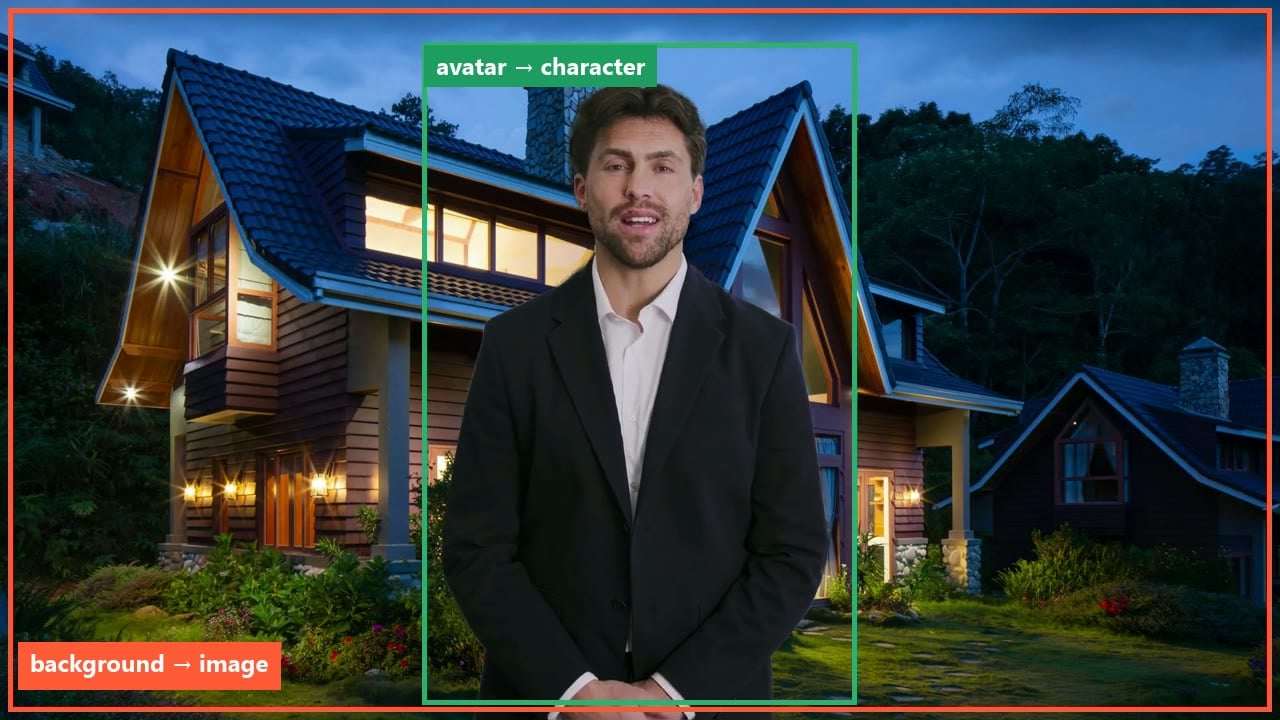
The source video's parts, as listed in composition. The spoken line is the third part: it has no box because you hear it rather than see it.
Your template will have different IDs. Take them from the
composition in your own response.
A template can also contain on-screen text, image and video elements, and composition.background_audio tracks for music and sound effects that bind as audio. Call GET /v3/templates/{template_id} at any time to read the same structure again.
The response also still includes the older
scenes and scene_ids fields. They are kept for existing integrations. Use composition for anything new.Step 4: Declare the variables
A variable is a name plus the part it controls. There are two ways to create one, and most templates use both.Bind a part by element_id
For
character, voice, image, video and audio variables. Point at a part from Step 3. Each part takes at most one of these.Match text
For
text variables. Give the exact, case-sensitive text. Every occurrence in the script and on-screen text becomes {{name}}, and the matched text becomes the default. Add element_ids to limit it to specific parts.Example response (200 OK, abbreviated)
composition.scenes[0].script[0].text in the response. The four phrases are now placeholders:
variable field with its variable’s name, edit_version went from "0" to "1", and variables lists each variable with its default value.
The PUT replaces the whole list
The body you send becomes the complete list of variables. Anything you leave out is deleted, and its text goes back to the default. To add a variable, send the same list again plus the new one. Re-sending amatch that is already a placeholder is fine.
Protect against overwrites with expected_edit_version
Every change to the variables increases edit_version. Send the version you read as expected_edit_version, and the API applies your change only if nobody changed the template since. It prevents this:
1
You read the template
It is at
edit_version "1" with seven variables.2
A teammate adds a variable
They add
bedrooms. The template is now at edit_version "2".3
You send your change
Your PUT carries the seven variables you read. Because the PUT replaces the whole list, it would silently delete your teammate’s
bedrooms. With "expected_edit_version": "1", the API sees the template is at "2", rejects the request, and changes nothing.4
You read again and retry
Read the template, which now includes
bedrooms, add your change, and send it with "expected_edit_version": "2"."0" after the template had moved to "1":
Example response (409 Conflict)
Step 5: Generate a video per agent, per listing
Send the values for this video, keyed by variable name. Character, voice and image variables you leave out keep the template’s value. This call swaps in a different agent, Caroline, with her own voice, and a new listing:Example response (200 OK)
id. Both videos below came from the same template:
Same agent, new listing
Only the text and photo were sent. Brandon and his voice came from the template.
New agent, new listing
The request above: Caroline, her own voice, and new text and photo.
Use fit: "cover" for full-frame backgrounds
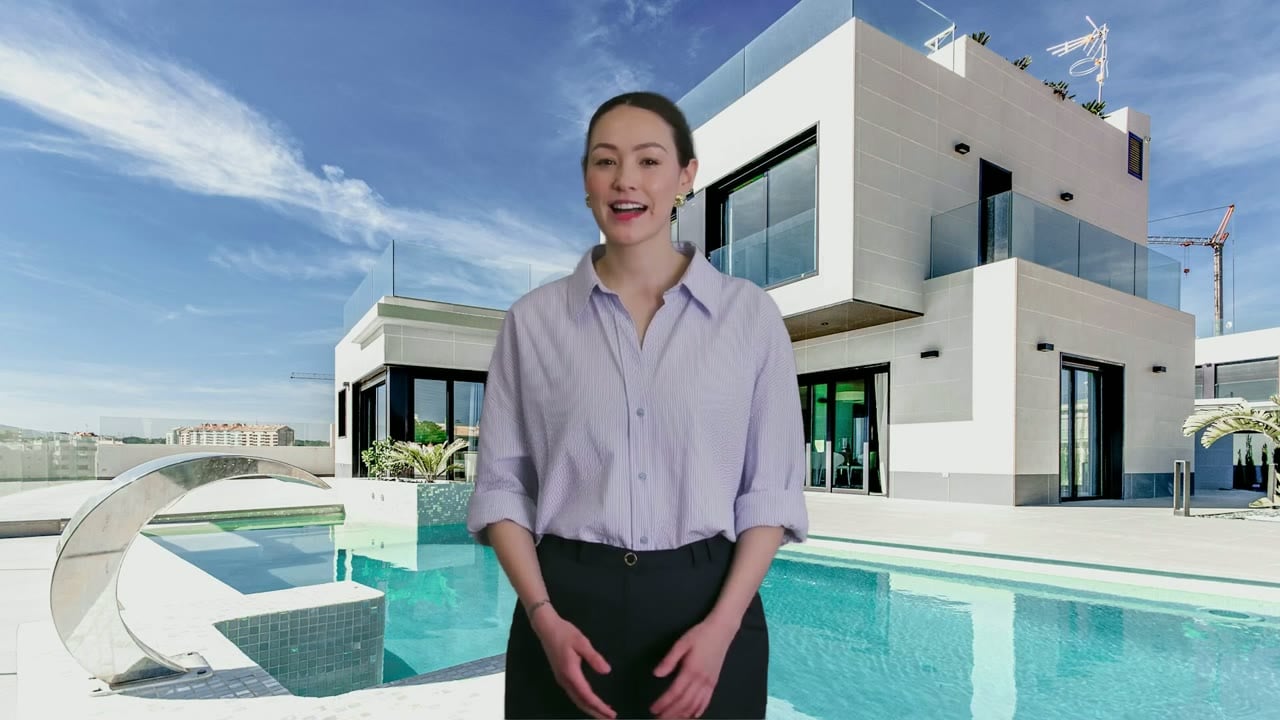
A swapped image defaults to fit: "contain", which fits the whole photo inside the frame and fills the rest with a solid color. For a background that fills the frame, send "fit": "cover".
Default (contain)
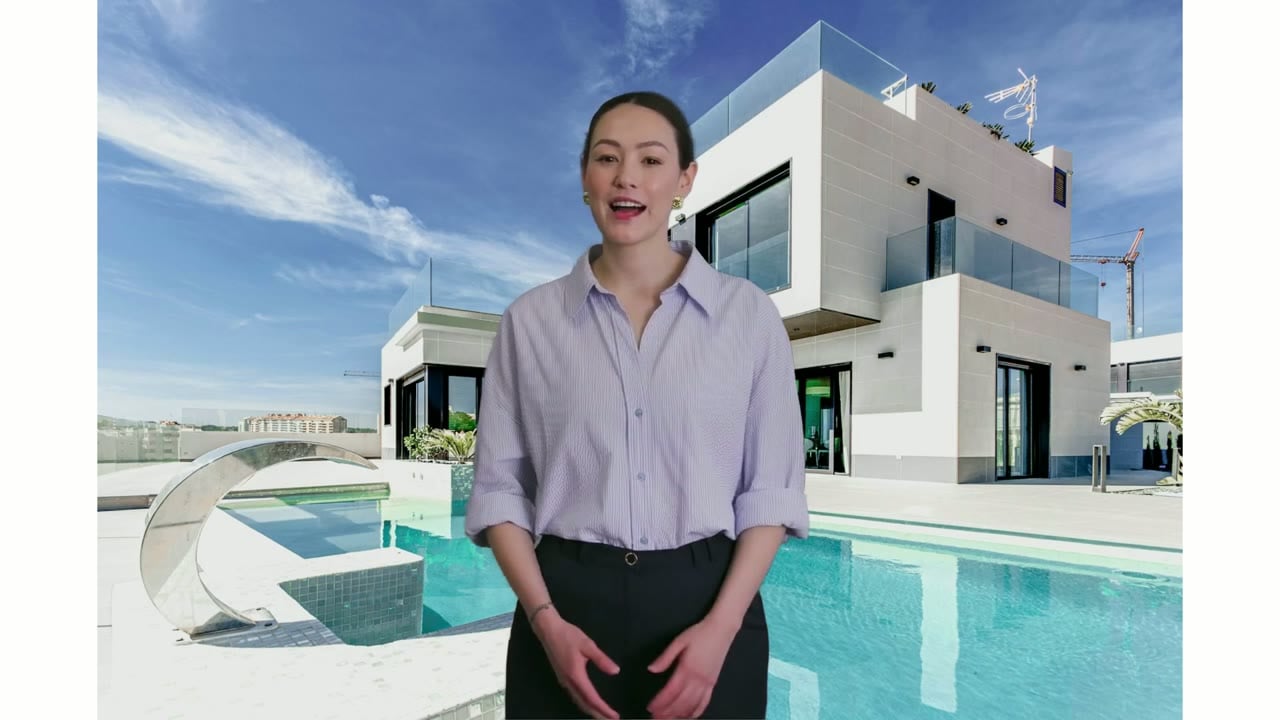
fit: "cover"
Step 6: Wait for the video
PollGET /v3/videos/{video_id} until status is completed (or failed), or pass callback_url on the generate call to get a webhook instead. When you generate many videos, use webhooks: polling each one adds up against your rate limit.
cURL
Example response (200 OK, completed)
video_url and thumbnail_url are signed links that expire. Call this endpoint again whenever you need fresh ones.
The whole flow in one script
Creates the source video, promotes it, declares variables from the composition, generates one video per listing, and waits for each.Python
Rename and delete
Rename
PATCH renames the template and returns the full template. Renaming does not change edit_version. Other changes go through PUT /v3/templates/{template_id}/variables or the HeyGen editor.
cURL
Example response (200 OK, abbreviated)
Delete
DELETE removes the template from your list so it can no longer generate videos. Videos you already generated from it are not affected. There is no request body.
cURL
Example response (200 OK)
Example response (404 Not Found)
Errors
FAQ
Which avatars can I swap in?
Which avatars can I swap in?
Any avatar look you can use, from
GET /v3/avatars/looks, including your own digital twin or photo avatar. Pair a character variable with a voice variable so the voice matches the person.My template already has {{placeholders}} from the editor. How do I keep them?
My template already has {{placeholders}} from the editor. How do I keep them?
Declare the text variable without
match, for example "first_name": { "type": "text" }. Placeholders that already exist are kept.Can I render only some scenes?
Can I render only some scenes?
Yes. Pass
scene_ids on the generate call to pick, reorder or repeat scenes that exist in the template.Related
Studio Template reference
Every variable type, asset input and generate option.
Building a Studio Template
The same flow, with the template built in the HeyGen editor.